
Bulk-update metafields
Published:2026-08-07 16:20/Updated:2026-08-11 12:05
Prepare a file (xlsx / csv) from the template and bulk-update SHOPLINE product metafields through a six-step wizard.
This tool is a six-step wizard (select connection → view definitions → upload file → preview → running → result).
Prerequisites
- At least one SHOPLINE connection
- This tool supports SHOPLINE connections only
- Uploads must be xlsx or csv, 10MB maximum
1. Select a connection
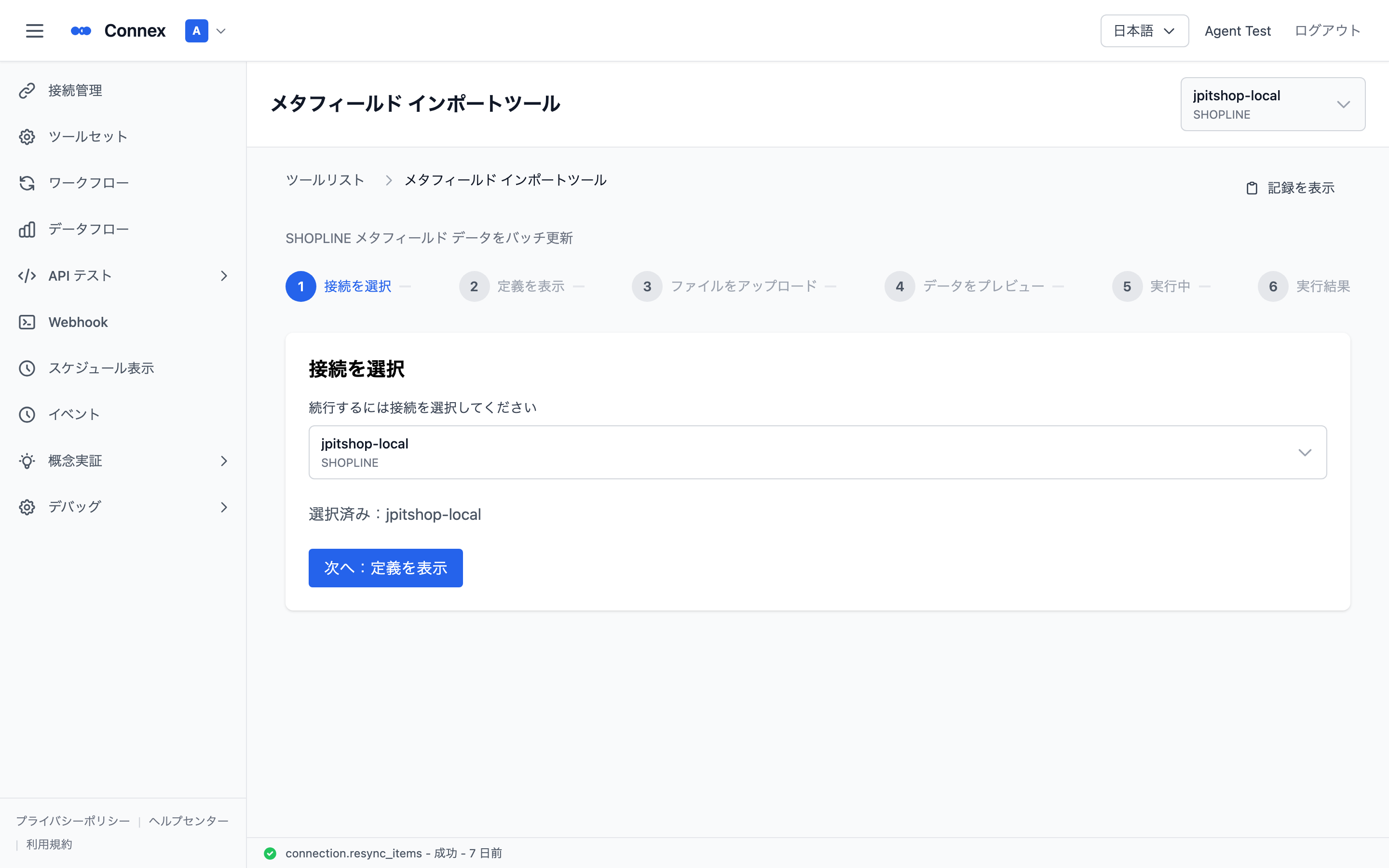
Open [Tool Set] → [Metafield Import Tool] and choose a SHOPLINE connection.
- If no connection is selected: "No SHOPLINE connection selected"
- If the selected connection is not SHOPLINE: "This tool is only available for Shopline Connection. The currently selected Connection is {platform} and cannot use this tool."
Once selected, "Selected: {connection name}" is shown. Click [Next: View Definitions].
2. View definitions and get the template
- Choose the resource (Products / Variants / Collections / Customers / Orders / Pages / Blogs / Articles / Shop).
- The metafield definitions for that resource are listed (namespace / key / value type / field name). Copy on each row gives you the path used in the template (e.g.
products.namespace.key). - Click [Download Template File] for an Excel template for that resource, containing owner_id / owner_resource.namespace.key / value columns.
- Fill in the template, save it, and continue.
Note
A message is shown if the resource has no metafield definitions.
Copying the path (owner_resource.namespace.key) from the definitions table avoids typos.
3. Upload the file
Click [Select File] or drag and drop. xlsx and csv up to 10MB are supported; an error is shown for other formats or oversized files.
The file name and size are shown once selected, and the wizard advances automatically.
Caution
From step 3 the connection is locked. To change it, start over.
4–6. Preview, run, result
- Confirm the file name in the preview and start the run.
- The running screen shows status, progress (processed / total) and success / failure counts in real time. There is no back button while it runs.
- The result shows succeeded / failed / total.
- Partial failure: a message asks you to check the error details
- Complete failure: a message states the run failed and asks you to check the error details
Was this article helpful?