
Connect a SHOPLINE store
Published:2026-08-07 16:20/Updated:2026-10-07 18:22
How to connect a SHOPLINE store to Connex so the tools can run, including how to find your store handle and complete authorization.
This guide covers connecting a SHOPLINE store to Connex.
Every Connex tool (order operations, inventory sync, Metafield import and so on) runs against a connection created here, so this is the first thing to set up.
Prerequisites
- A Connex account, signed in
- The store handle of the SHOPLINE store you want to connect
Note
The store handle is the OOOO part of your SHOPLINE admin URL OOOO.myshopline.com (e.g. shoplinedemo).
Overview
| Step | Action | Where |
|---|---|---|
| 1 | Open [Connections] | Connex |
| 2 | [Add Connection] | Connex |
| 3 | Select the platform | Connex |
| 4 | Enter the store handle | Connex |
| 5 | Approve authorization | SHOPLINE |
| 6 | Check the connection | Connex |
1. Open the connections page
Click [Connections] in the left function bar. The connection accounts page opens.
If you have no connections yet, the page says so.
2. Click [Add Connection]
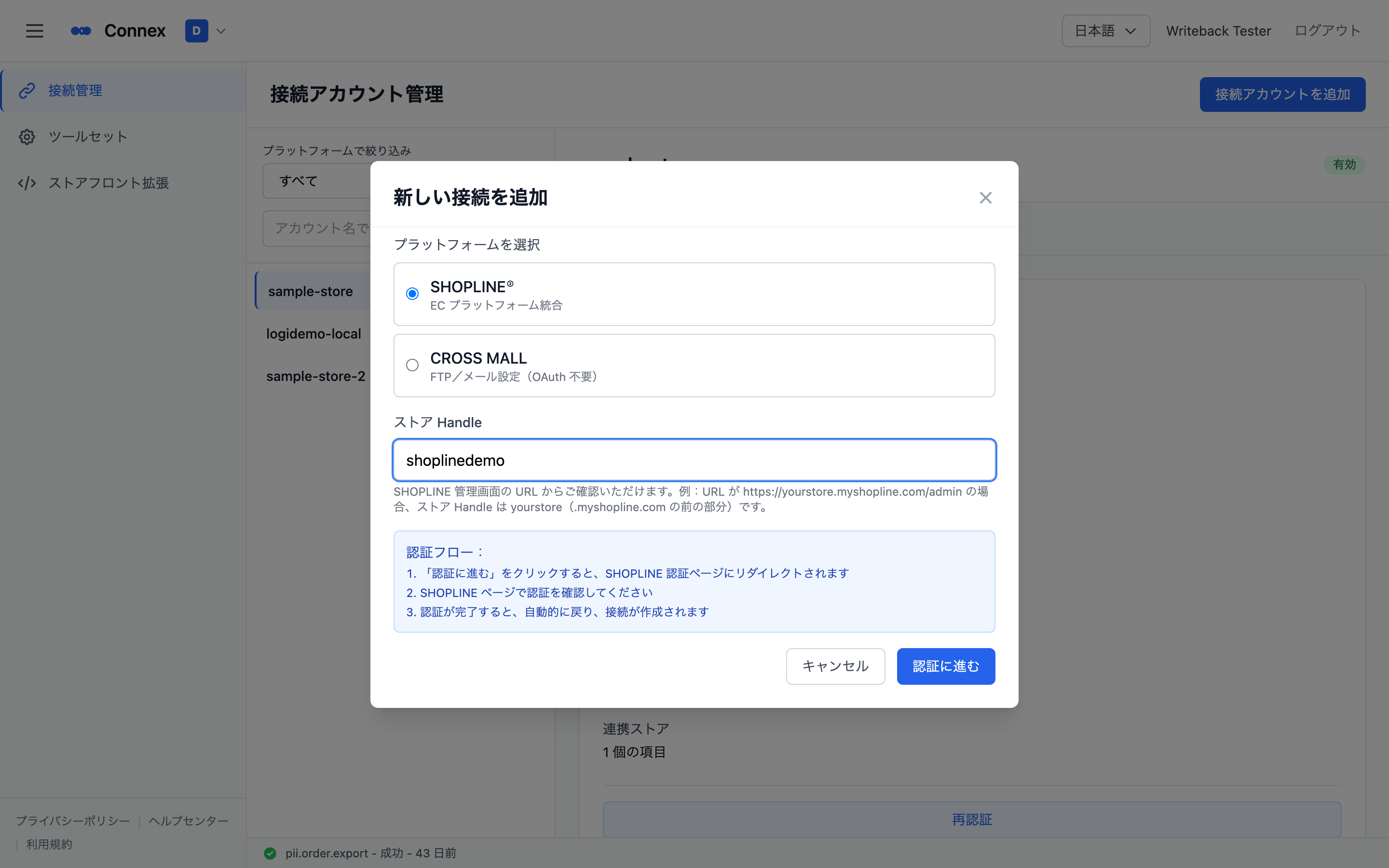
Click [Add Connection] at the top right. The add-connection dialog opens.
![The add-connection dialog with [Select Platform] at the top](https://api.connex.ortu.me/api/help/assets/3821c12b791969dd.png)
3. Select the platform
Choose SHOPLINE under [Select Platform] (it is selected by default).
4. Enter the store handle
Enter the handle of the store in the [Store Handle] field (e.g. shoplinedemo).
Caution
A wrong handle takes you to a different store on the authorization page. Double-check the OOOO part of OOOO.myshopline.com.
5. Go to authorization
Click [Go to Authorization] at the bottom of the dialog to open the SHOPLINE authorization page.
If you are not signed in to SHOPLINE, sign in with that store's account first. Then review the data Connex will access and approve.
6. Check the connection
After authorization you are returned to Connex automatically and the new connection appears in the list.
Select it to see [Connection Summary] on the right (platform / platform account / token expiry / authorized by / created / last updated).
If Enabled is shown next to the connection name, it is ready to use.
Caution
If you closed the window during authorization or it timed out, start again from [Add Connection] on the connections page.
![Connections page — list on the left, [Connection Summary] of the selected connection on the right](https://api.connex.ortu.me/api/help/assets/5bf7ae977a1186d8.png)
If it does not work
| Symptom | What to do |
|---|---|
| "Already connected to another organization" | A store can only be managed by one organization. Check with the administrator of that organization |
| You closed the window during authorization | Start again from [Add Connection] |
| It does not become Enabled, or a warning appears | See "Check connection status" |
Was this article helpful?