
Publish or unpublish products at launch time
Published:2026-08-07 16:20/Updated:2026-08-07 16:26
A publish time alone publishes automatically, an unpublish time alone takes products down, and both together give you a limited-time sale.
1. Pick the products
- Open [Tool Set] → [Product Scheduler] in the left navigation.
- Select the target SHOPLINE store in the connection switcher at the top.
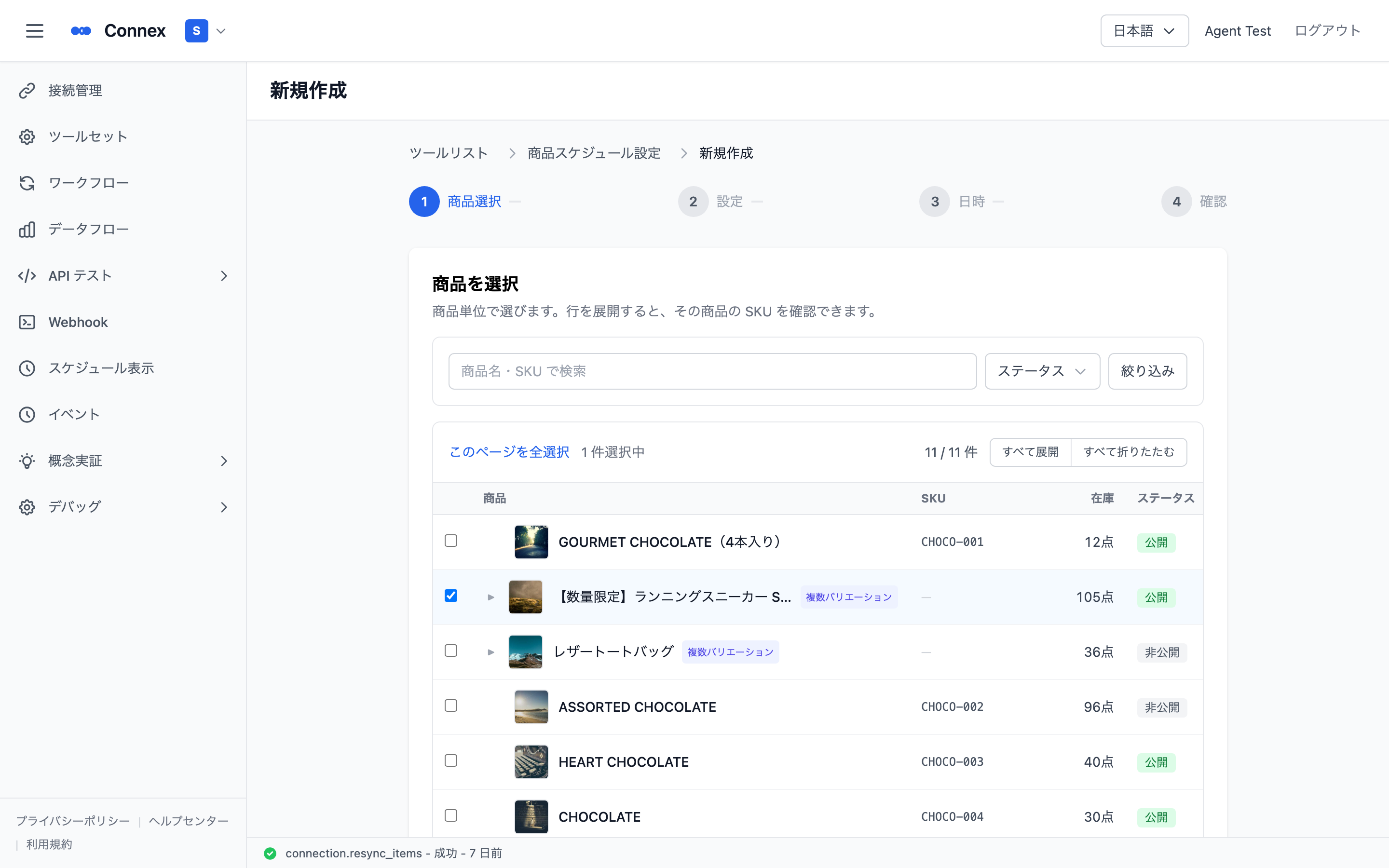
- On the Product List tab, tick the products and click [New schedule] at the bottom.
The list shows product name and SKU, status (published / unpublished / archived), price and inventory. Expand a row to see that product's SKUs.
Note
Sync status is shown at the top right. If products are missing or out of date, click [Re-sync] to fetch from SHOPLINE.
2. Name it and choose the kind of change
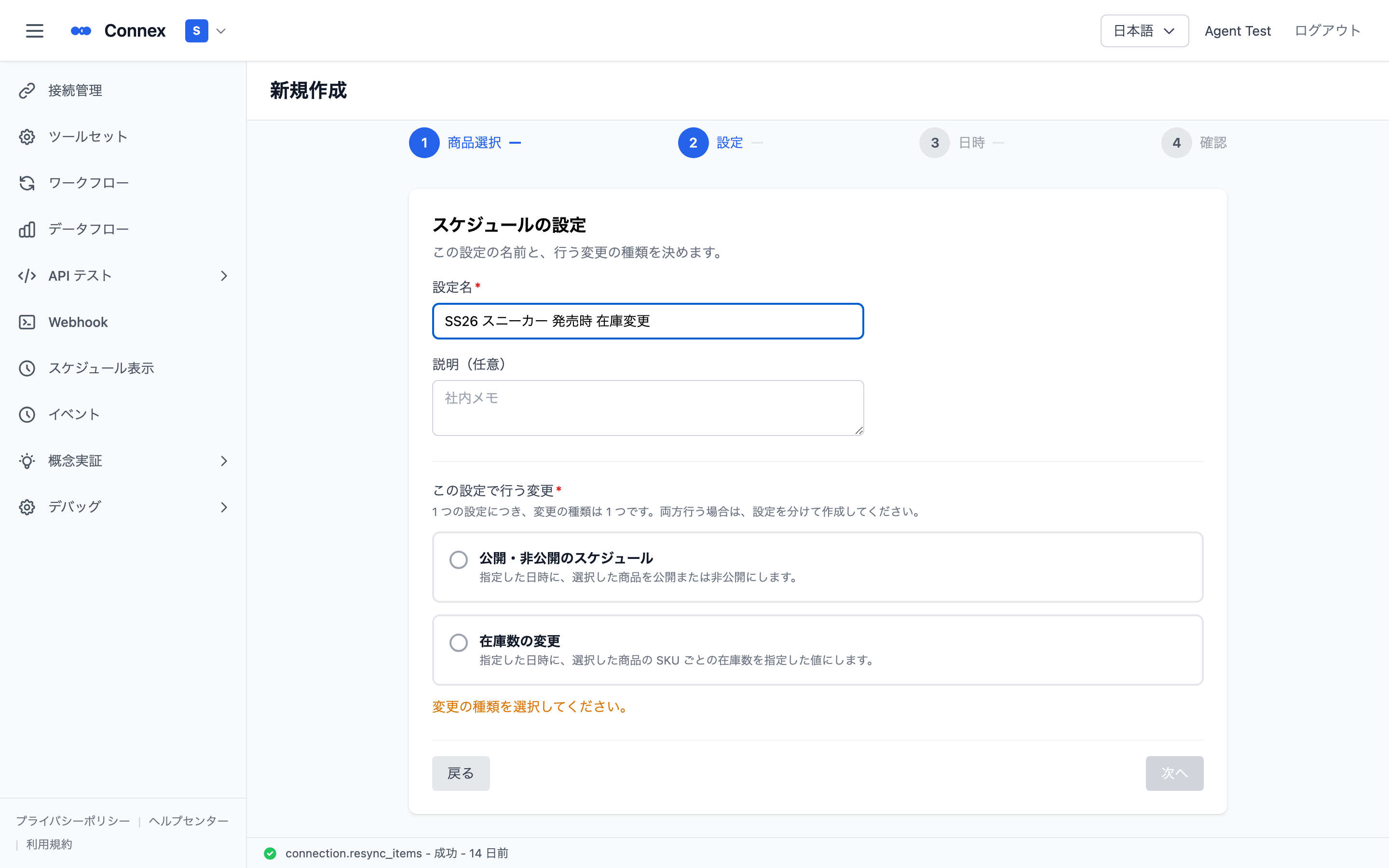
- Enter a name (required) — this is how you will recognise it later (e.g. "Autumn launch").
- Description (optional) is an internal note.
- Choose [Publish / unpublish schedule] as the change.
3. Set the times
Set a publish time and an unpublish time. Both are optional, but at least one is required.
| What you set | Behaviour |
|---|---|
| Publish time only | Publishes automatically at that time |
| Unpublish time only | Unpublishes automatically at that time |
| Both | Limited-time sale — published, then unpublished |
Caution
If a product you selected already has another schedule, a message warns you that the new schedule will overwrite it at the scheduled time. Check that the order is what you intend.
4. Review and create
Check the name / products (count) / publish time / unpublish time and click [Create].
If you set both times, a message notes that this becomes two scheduled entries. Their results appear separately in the schedule overview.
Note
Set the publish time before the unpublish time.
Was this article helpful?