
Create shipping data
Published:2026-08-07 16:20/Updated:2026-08-07 16:26
Filter orders and export shipping data in Yamato B2 Cloud, Sunekonek or Sagawa format — no manual CSV editing needed.
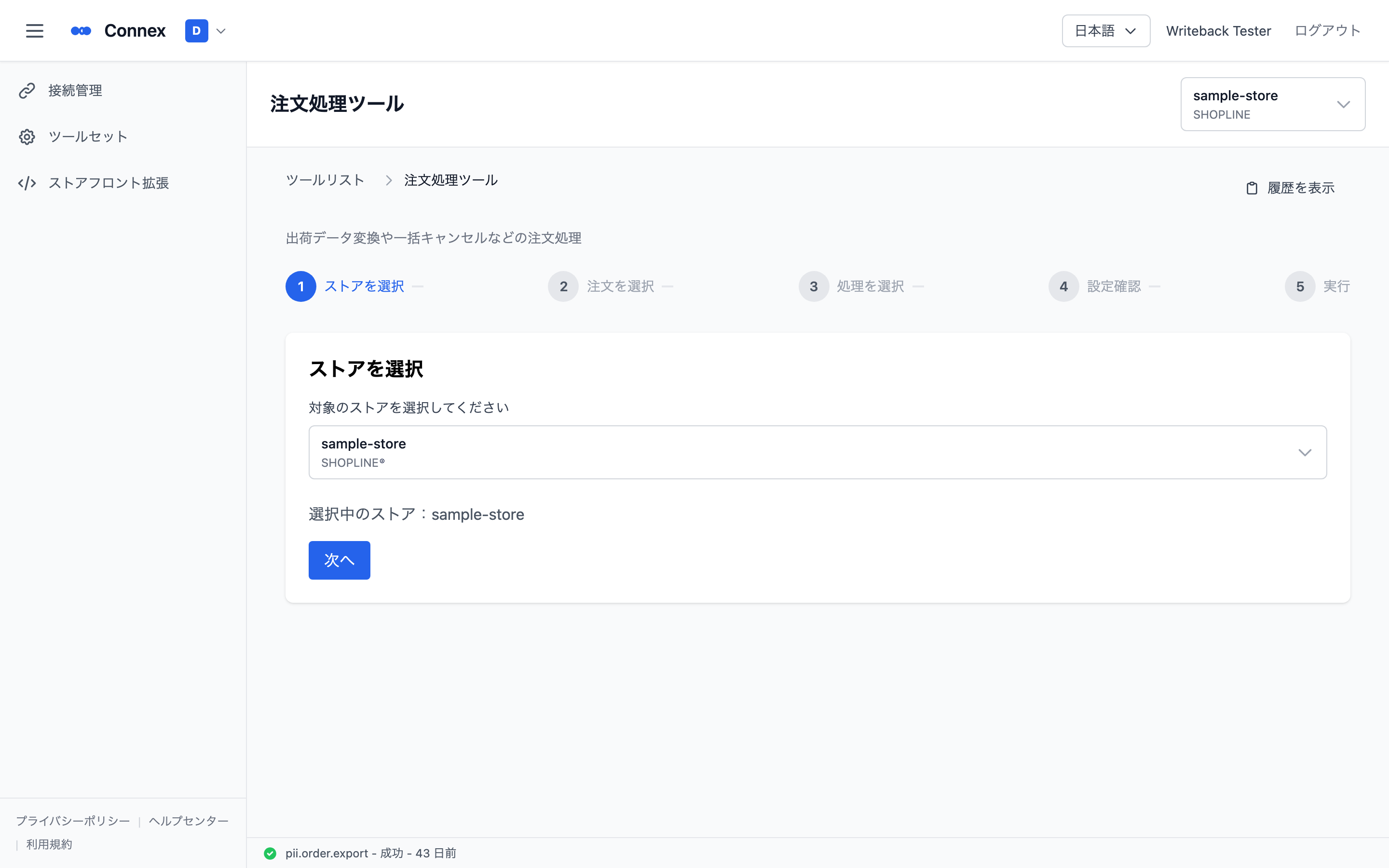
1. Select a connection
- Click [Tool Set] in the left navigation.
- Click [Order operations].
- In step 1, choose one SHOPLINE connection from the context bar at the top.
- The selected connection is shown and the button to continue appears.
Caution
If the selected connection is not SHOPLINE, a message says the tool supports SHOPLINE connections only. Switch to a SHOPLINE connection.
2. Filter and select orders
Set the conditions in the filter area. The main ones are:
| Condition | Values |
|---|---|
| Start / end date, order date | Today / last 7, 30, 90 days / 12 months / custom |
| Order status | Processing / cancelled / archived |
| Payment status | Unpaid / authorized / processing / partly paid / paid / partly refunded / refunded / overpaid |
| Shipping status | Unfulfilled / partly fulfilled / fulfilled |
| Fulfillment state | Exported / not exported |
| Search | Order number, customer name, etc. |
| More filters | Shipping plan, payment method, tags (include / exclude), delivery time, etc. |
Use [Filter] or [Reload] to fetch orders, then tick the ones you want. [Select All], clear, and "select everything matching the conditions" are available.
The total and selected counts are shown at the bottom. Selecting at least one enables the next step.
Caution
The fulfillment state filter (exported / not exported) is Connex's own state, not SHOPLINE's shipping status. Do not confuse the two.
3. Choose fulfillment
- Select the [Fulfillment] card.
- Choose the target.
| Target | Content |
|---|---|
| Yamato B2 Cloud | Converts orders to the Yamato B2 Cloud format |
| Sunekonek | Converts orders to the Sunekonek format |
| Sagawa Express | Converts orders to the Sagawa format |
- Choose the output format (Excel (XLSX) / CSV). For CSV, also choose the encoding (UTF-8 with BOM / Shift_JIS for Japan / EUC-JP).
- The review step becomes available.
4. Review
- Check the target, number of selected orders, output format and the preview.
- Selecting more than 100 orders shows a note that processing takes longer.
- Expand the applied settings to review and edit parameters such as sender details and Yamato customer codes.
- Yamato B2 Cloud shows a planned shipping date you can change (business days exclude weekends and holidays; only weekends when holiday data is unavailable).
- Click [Start Export] when it looks right.
5. Run and download
- Progress and status (running / succeeded / failed) are shown. You cannot go back while it runs.
- On success you see the completion message, the record count, the file name and its size.
- Click [Download File] to get the export.
- On failure the error message and the time are shown. Check, then retry or contact your administrator.
Afterwards you can push the shipping status back to SHOPLINE from the same screen.
Was this article helpful?