
What the order operations tool does
Published:2026-08-07 16:20/Updated:2026-08-07 16:26
Filter SHOPLINE orders, produce shipping data for carrier systems, and cancel orders in bulk — through a five-step wizard.
The order operations tool filters SHOPLINE orders so you can handle shipping for logistics platforms and run bulk order operations in one place.
A single five-step wizard (select connection → select orders → choose operation → review → run) covers:
- Fulfillment (targets: Yamato B2 Cloud / Sunekonek / Sagawa Express)
- Shipping data export: generates a CSV or Excel (XLSX) file to download
- Batch order operations: bulk cancellation of orders that meet the conditions
From the same completion screen you can also mark orders as shipped in SHOPLINE and upload tracking numbers.
Prerequisites
- At least one SHOPLINE connection (Connect a SHOPLINE store). This tool supports SHOPLINE connections only.
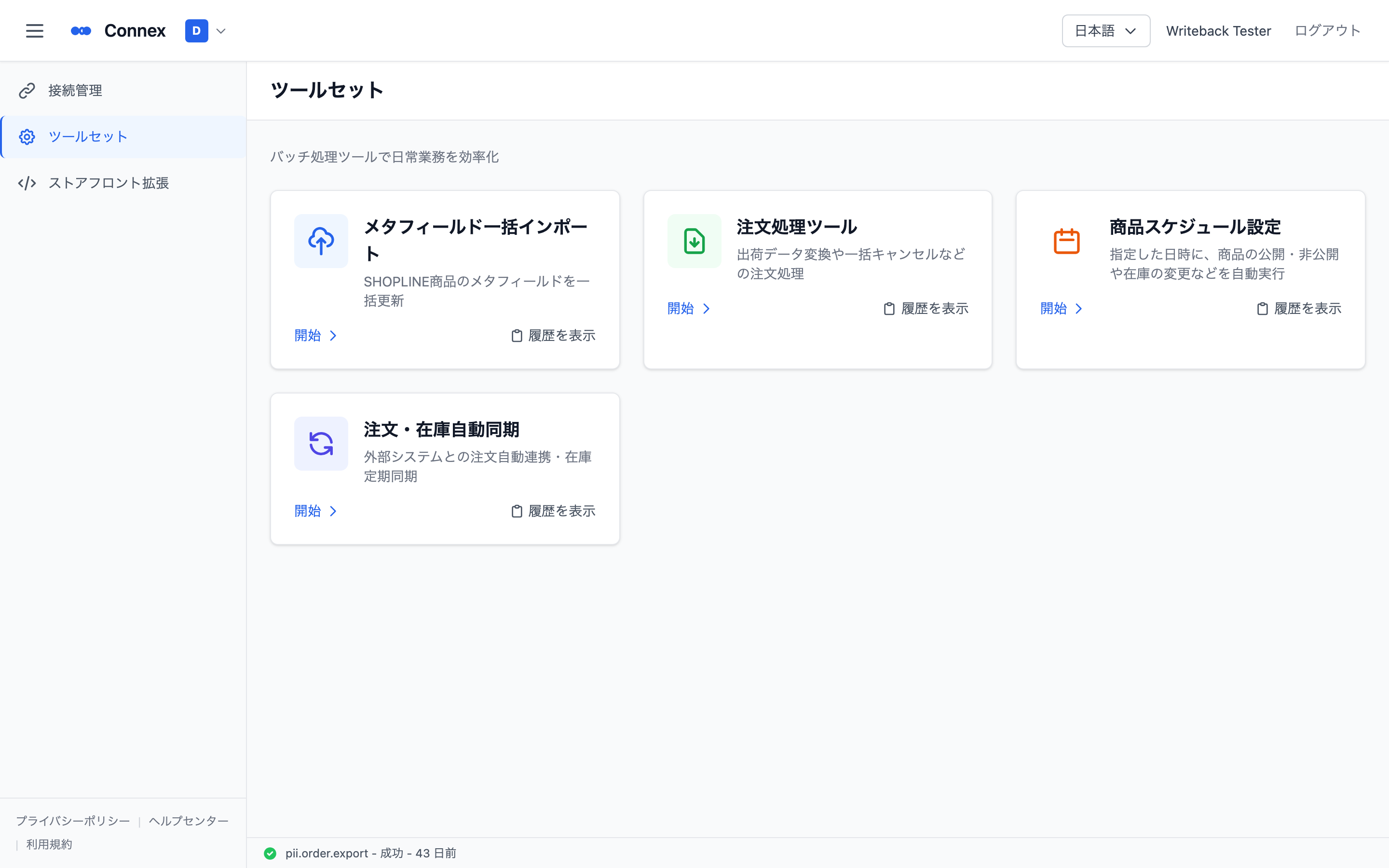
- Signed in to Connex with [Tool Set] visible in the left menu.
Sections
| Section | Content |
|---|---|
| 1. Select connection | Enter from Tool Set and pick a SHOPLINE connection in the context bar |
| 2. Select orders | Narrow by period, statuses, search and more filters, then tick the orders |
| 3. Choose operation | "Fulfillment" or "Batch order operations" |
| 4. Review | Target format, count, output format and parameters |
| 5. Run | Progress, then download the file or review cancellation results |
| 6. Update shipping status in SHOPLINE | "Mark as shipped" and "Upload tracking" |
| 7. Review logs | Past runs, results and error details from "View Logs" |
Tool URL: https://connex.ortu.me/tools/order-export
Was this article helpful?