
Review, change and cancel schedules; check history
Published:2026-08-07 16:20/Updated:2026-08-11 12:05
Check schedule status, remove products, change the scheduled time, cancel, and review execution history.
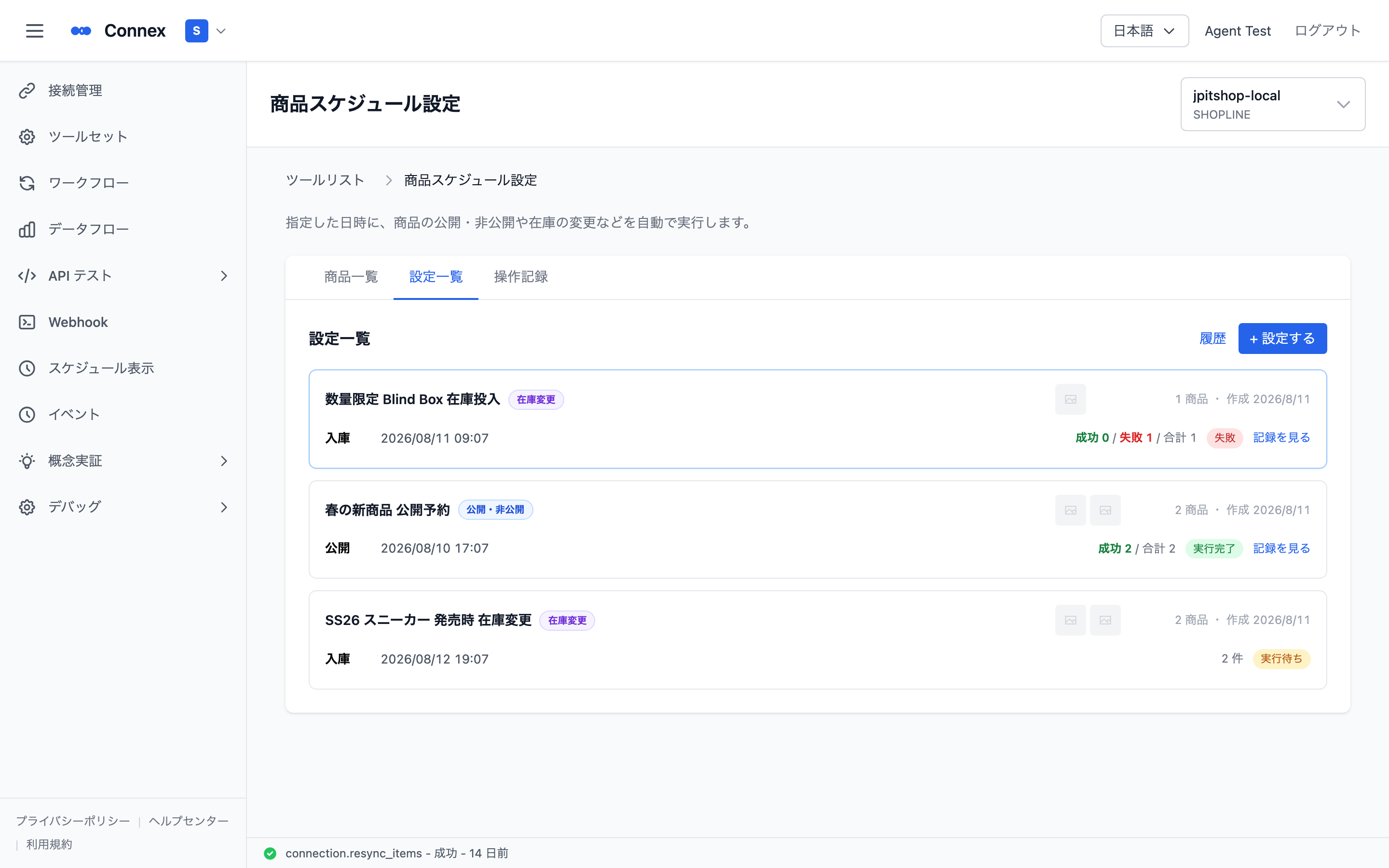
Schedule list
The Schedules tab lists what you have created, with product count, scheduled time and status.
| Status | Meaning |
|---|---|
| Pending | Not run yet |
| Completed | Ran at the scheduled time |
| Cancelled | Was cancelled |
What you can do in the detail view
Click a schedule to open its detail.
- Review the target products and the schedule (time, action, status)
- Inventory changes also show the destination location
- Use [Change] to move the scheduled time
- Use [Delete] on a product to drop it from the schedule (you are warned that its pending entry will be cancelled)
Cancelling a schedule
A pending schedule can be cancelled with [Cancel schedule]. After you confirm, every pending entry in it is cancelled.
Caution
A schedule that has already run cannot be undone. To revert it afterwards, create a new schedule with the opposite settings, or change the product directly in SHOPLINE.
Checking the execution history
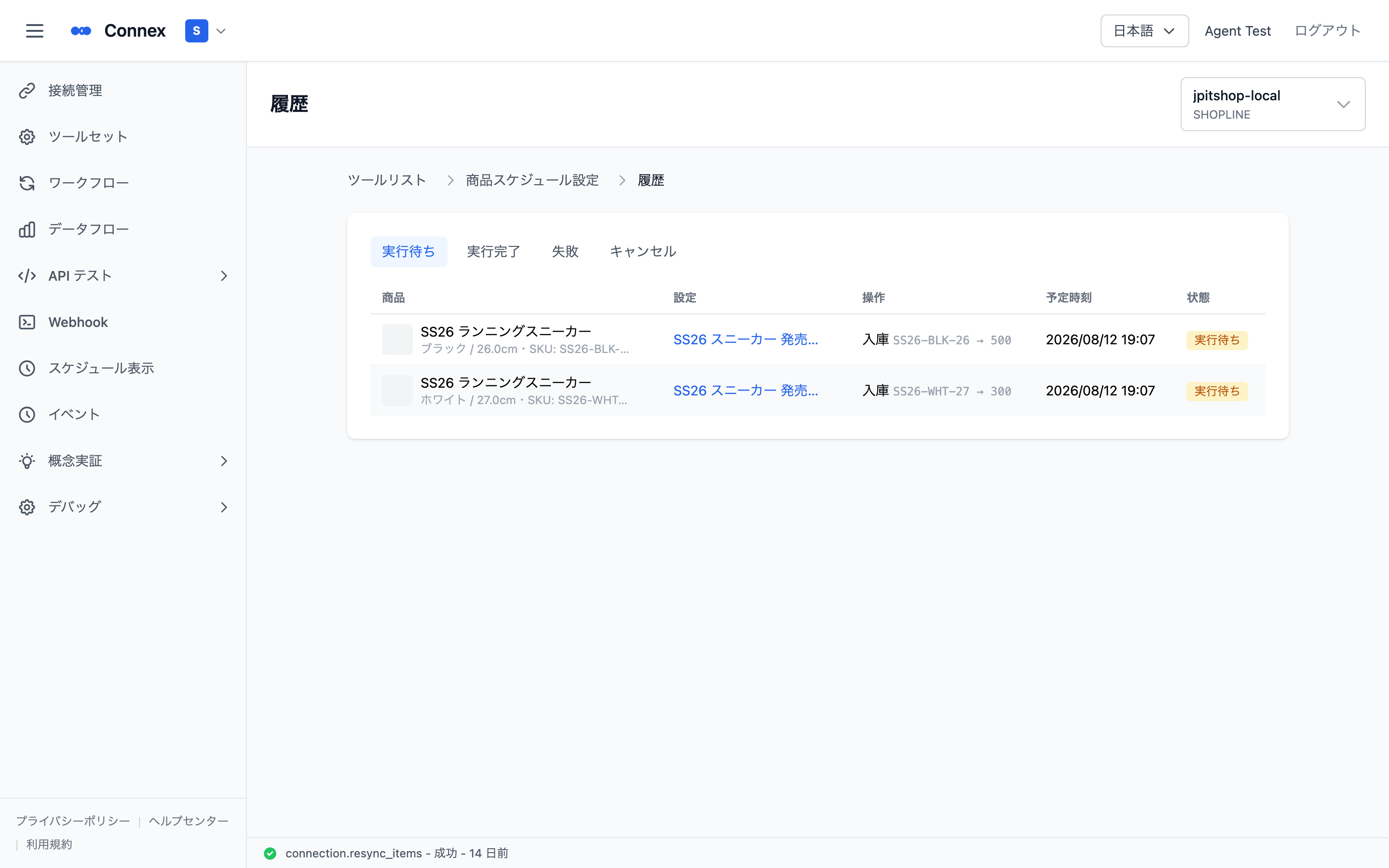
Open [Schedules] from the schedule list, or go to https://connex.ortu.me/tools/scheduled-listing/schedules, to see the history across every schedule.
Switch between Pending / Executed / Failed / Cancelled to review each entry’s product, schedule, action, scheduled / executed time and status. Failed entries can be expanded to show the error.
Was this article helpful?