
Create a Connex account
Published:2026-08-07 16:20/Updated:2026-08-07 16:26
How to create a Connex account with your email address and sign in to the admin console.
This guide covers creating a Connex account and signing in to the admin console.
1. Add Connex from the SHOPLINE app store
Sign in to your SHOPLINE store, go to [Apps]>[App Store], search for "Connex" and install it.
2. Register (or sign in)
If you do not have an account yet, register first. If you already have one, sign in with your email and password.
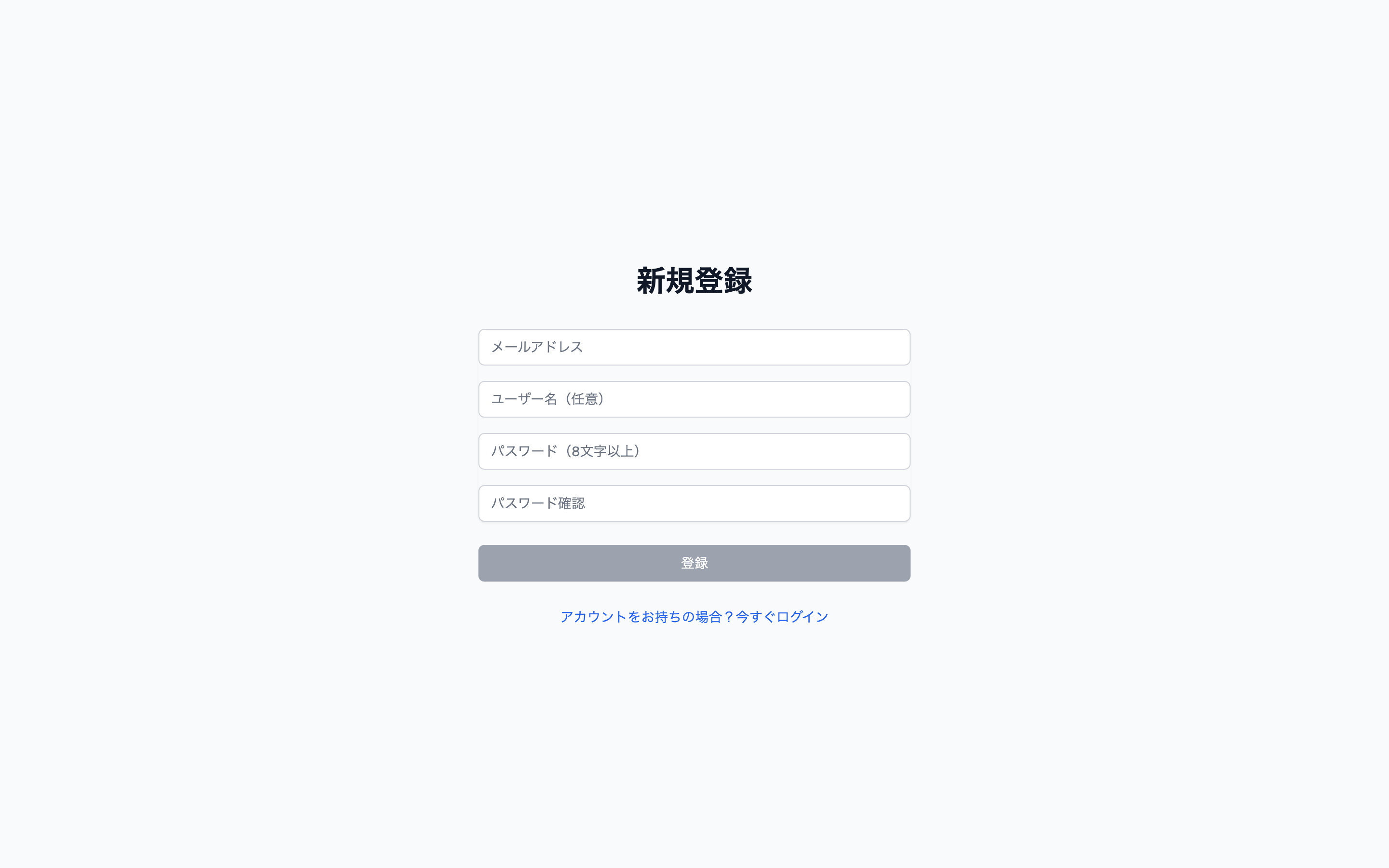
3. Fill in the required fields
| Field | Notes |
|---|---|
| Email address | This becomes your sign-in ID. Use your work address |
| Password | 8 characters or more |
| Name | Shown in the admin console and in activity logs |
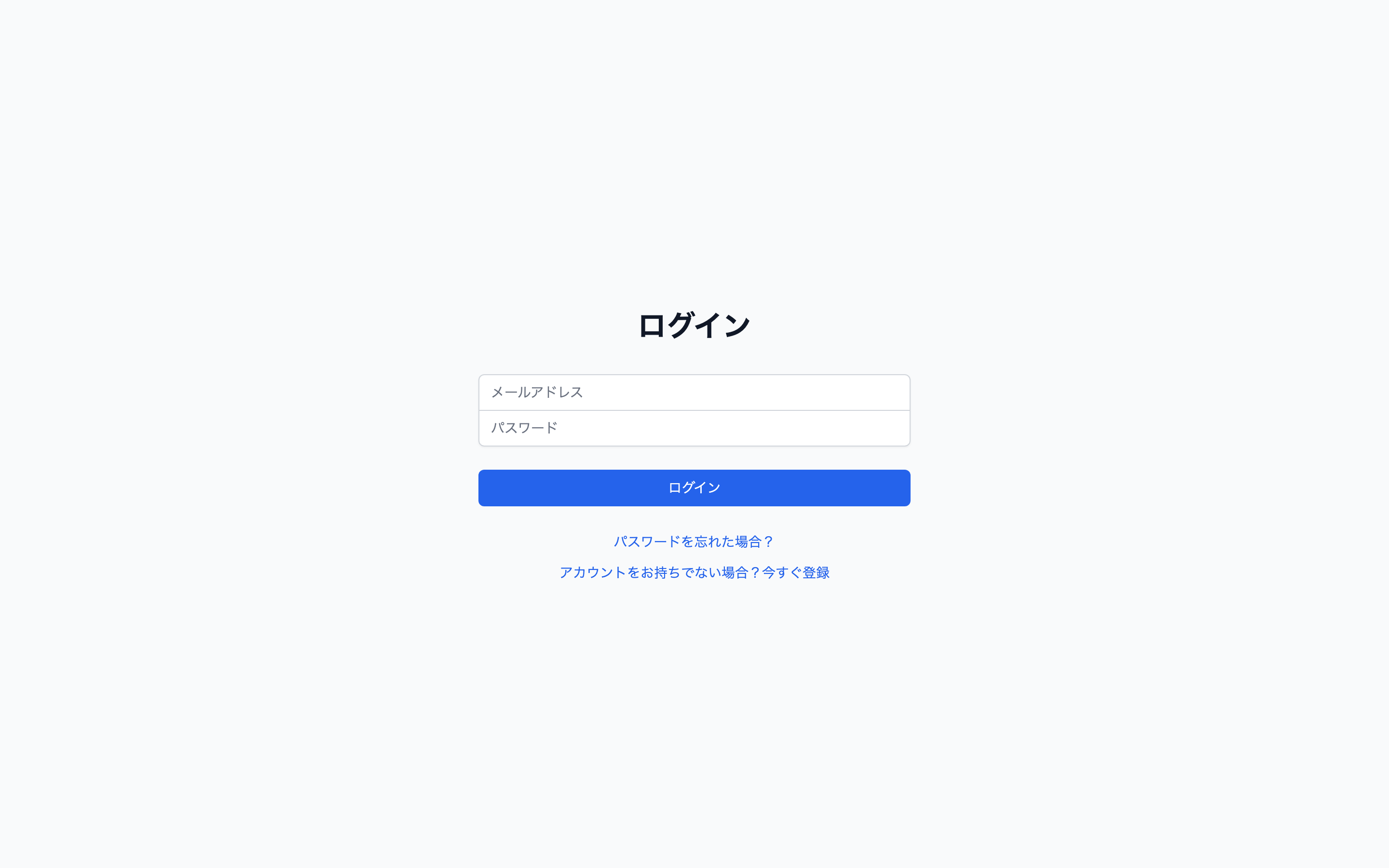
Click [Register]. Once registration completes you are taken to the sign-in page.
Caution
- If the email or password is wrong, a message appears on screen. Check your input and try again.
- If the account has been deactivated you will see a message saying so. Contact your Connex administrator.
Note
After your first sign-in, connect your SHOPLINE store from [Connections]. See "Connect a SHOPLINE store".
4. Change the display language
Use the menu at the top right to switch between 日本語 / 繁體中文 / English. The choice is remembered in your browser.
Was this article helpful?