
Products are listed on the Product sync tab — what should I do?
Published:2026-08-07 16:20/Updated:2026-09-15 15:10
What unmatched SKUs mean and how to resolve them.
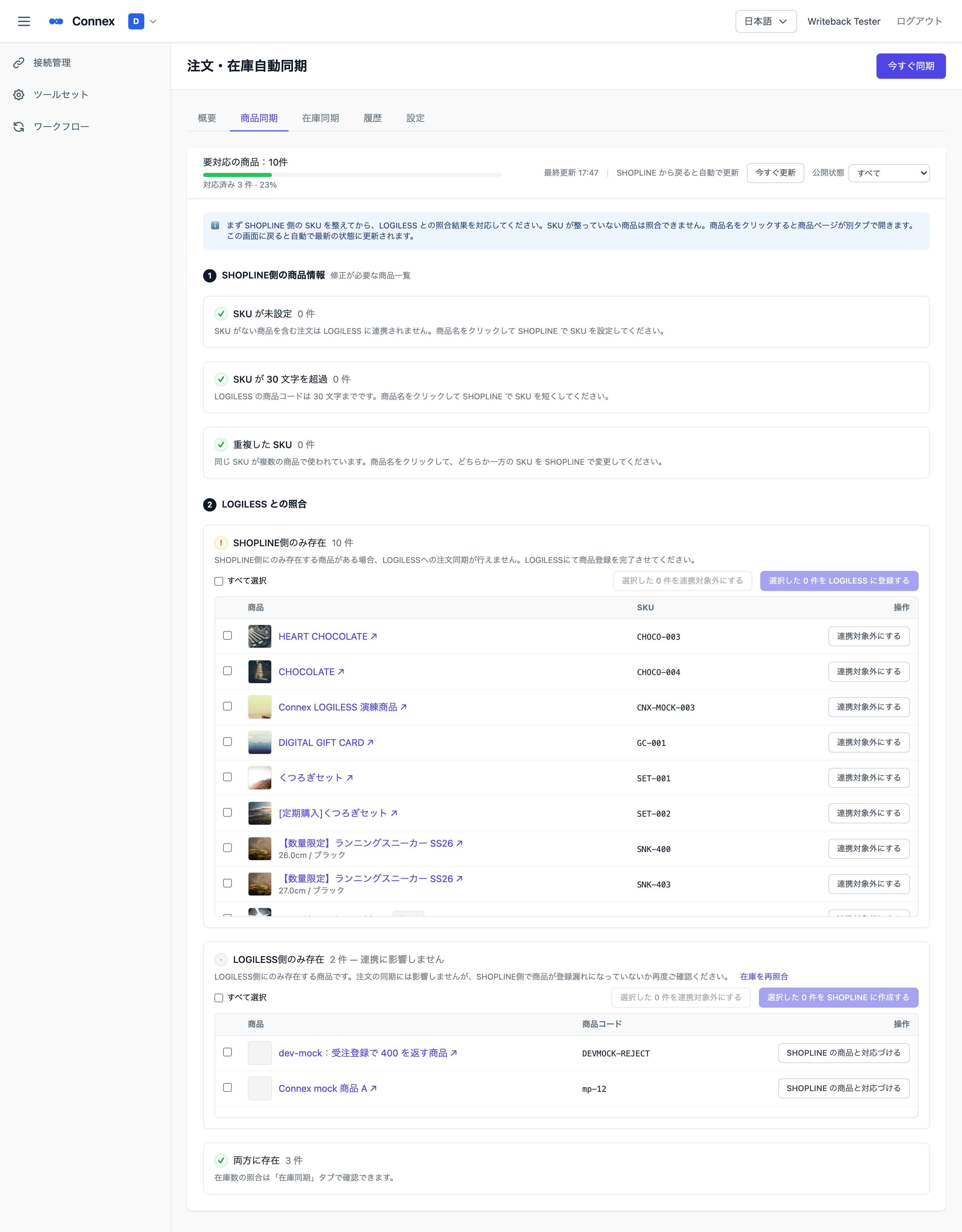
The [Product sync] tab lists products that do not match between SHOPLINE and the linked system (e.g. LOGILESS), grouped by reason. A listed product is excluded from order linking and inventory sync until its reason is resolved. You can also reach this screen from the "Action needed: N product(s)" notice on the [Overview] tab.
Where to start
Work from the top down. Products with SKU problems cannot be reconciled, so clear section 1 first. You are done when "Products needing action: N" at the top reaches 0.
1. Product info on SHOPLINE (fix on the SHOPLINE product page)
| List | What happens | What to do |
|---|---|---|
| No SKU | Orders containing this product are not linked | Click the product name and set a SKU in SHOPLINE |
| SKU exceeds 30 characters | Cannot be registered on the linked system | Assign a shorter SKU (the limit depends on the linked system and is shown on screen) |
| Duplicate SKUs | The stock write target cannot be determined | Change one of the SKUs |
The product page opens in a new tab. When you return to this screen it refreshes automatically and shows how many were resolved ("N resolved").
2. Comparison with LOGILESS
| List | What happens | What to do |
|---|---|---|
| Only in SHOPLINE | Orders containing this product are not linked | Select the rows and click [Register N selected in LOGILESS] to register them on the linked system with the product name and product code (= SKU) (stock is registered as 0, so receive stock on the linked system). Products you do not intend to link can be removed from the list with [Exclude from linking] (you can [Restore] at any time) |
| Only in LOGILESS | Does not affect linking | If the same product exists in SHOPLINE, use [Pair with a SHOPLINE product] and pick a product without a SKU — the product code is set as that product's SKU. If not, select the rows and click [Create N selected in SHOPLINE] to create drafts in SHOPLINE with only the name and SKU. No price is sent, so they appear at ¥0 in the SHOPLINE product list — set price, images and visibility in SHOPLINE (bundle products are not created) |
| Excluded | Not linked (by your choice) | Products set to not link. Press [Restore] to lift the exclusion and return them to their original list |
| In both | Aligned | Nothing to do. Stock level comparison is on the [Inventory sync] tab |
Note
The LOGILESS product list is fetched directly from LOGILESS every time this screen opens. Right after registering in LOGILESS, click [Refresh now] or return to this screen and it is reflected. For CROSS MALL it is reflected after the next inventory sync.
If it still does not disappear
| Cause | How to check |
|---|---|
| Product codes do not match | Check that the store SKU and the linked system's product code match exactly (upper/lower case, leading/trailing spaces) |
| Product code exceeds the length limit | A SKU over the limit cannot be registered on the linked system. You need to assign a shorter SKU on the store side |
Warning
[Exclude from linking] only removes the product from the list; orders containing it are still not linked. Do not use it for products you intend to link.
Was this article helpful?