
Check status and history on the operations screen
Published:2026-08-07 16:20/Updated:2026-09-16 16:26
After enabling, opening [Order & Inventory Auto Sync] shows the operations screen. It has 5 tabs.
| Tab | What you see |
|---|---|
| Overview | The current state (running status, counts, last sync, order status, recent incidents) |
| Product sync | Whether products match between SHOPLINE and the linked system (SKU problems, products on one side only) |
| Inventory sync | Whether stock levels match between the linked system and SHOPLINE |
| History | What ran when, and whether it succeeded or failed |
| Settings | Review the link configuration, link integrity, connection test, reset |
Click [Sync now] at the top right to run one inventory pull and shipment write-back immediately instead of waiting for the 5-minute schedule.
Overview
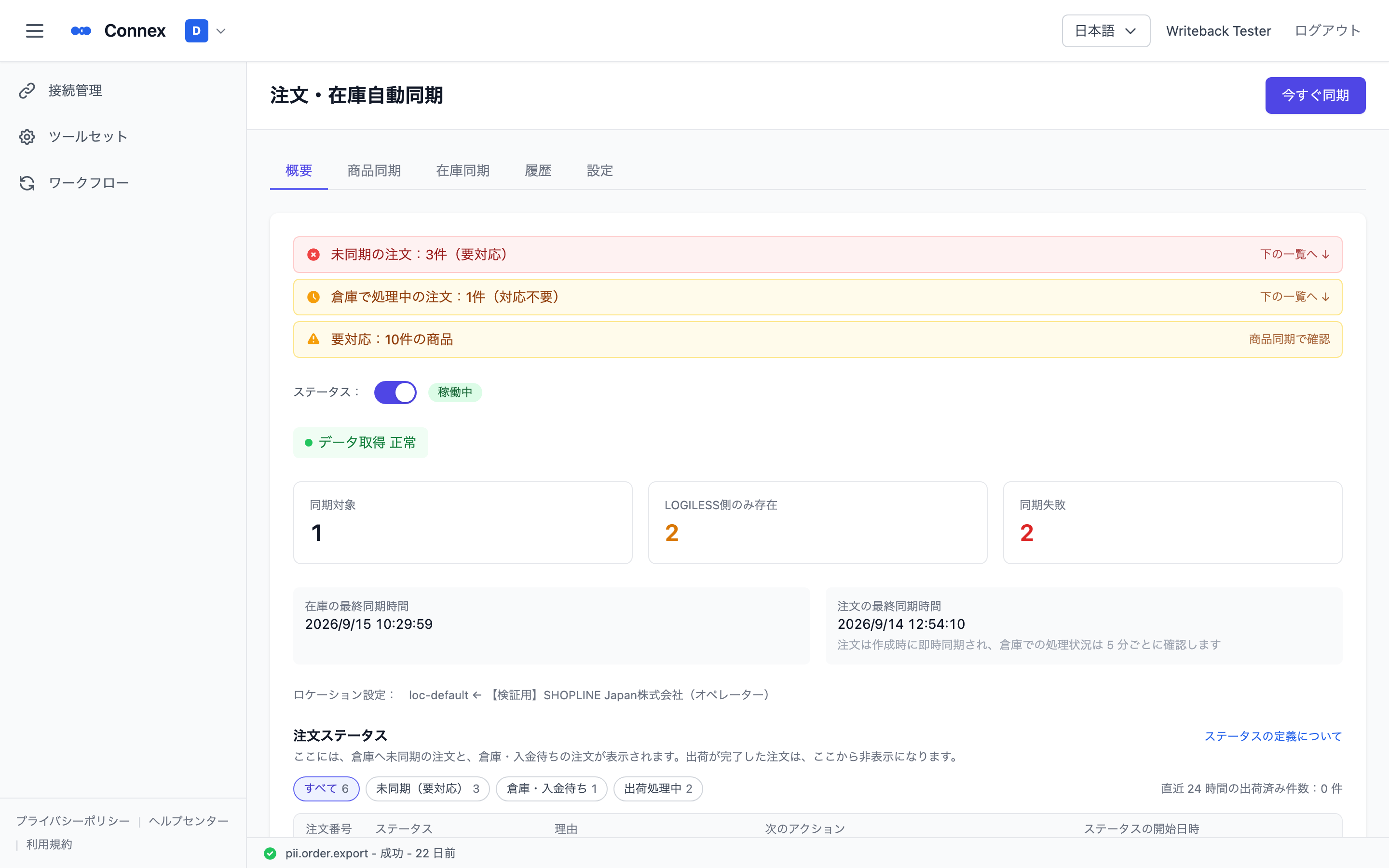
Notices at the top: only things that need attention are shown, briefly. When nothing is wrong, no notice is shown (only while orders are in shipping does the green "No unsynced orders (N in shipping)" appear).
| Notice | Meaning | On click |
|---|---|---|
| Unsynced orders: N (action needed) | There are orders that need your attention | Jumps to "Order status" below |
| Orders being handled at the warehouse: N (no action needed) | Orders are waiting on the warehouse or on payment | Jumps to "Order status" below |
| Action needed: N product(s) | Some products do not match between SHOPLINE and the linked system | Opens the [Product sync] tab |
- Status: the toggle switches between Active and Paused. While paused, order linking, inventory updates and shipment write-back do not run.
- Sync health: shows "Source fetch" (can we read from the linked system?) and "Delivery" (can we write to SHOPLINE?) separately, so you can see at a glance where things are stuck.
- Three counts: [In sync] (SKUs matched on both sides whose stock is being synced) / [Only in LOGILESS] (products that exist only on the linked system) / [Sync failures] (SKUs whose stock write is failing). Click to open the corresponding tab.
- Last sync: "Last inventory sync" and "Last order sync" show the last sync time for each. Orders sync as soon as they are placed; warehouse progress is checked every 5 minutes.
- Location settings: one line showing which warehouse's stock is written to which SHOPLINE location.
Order status (LOGILESS only)
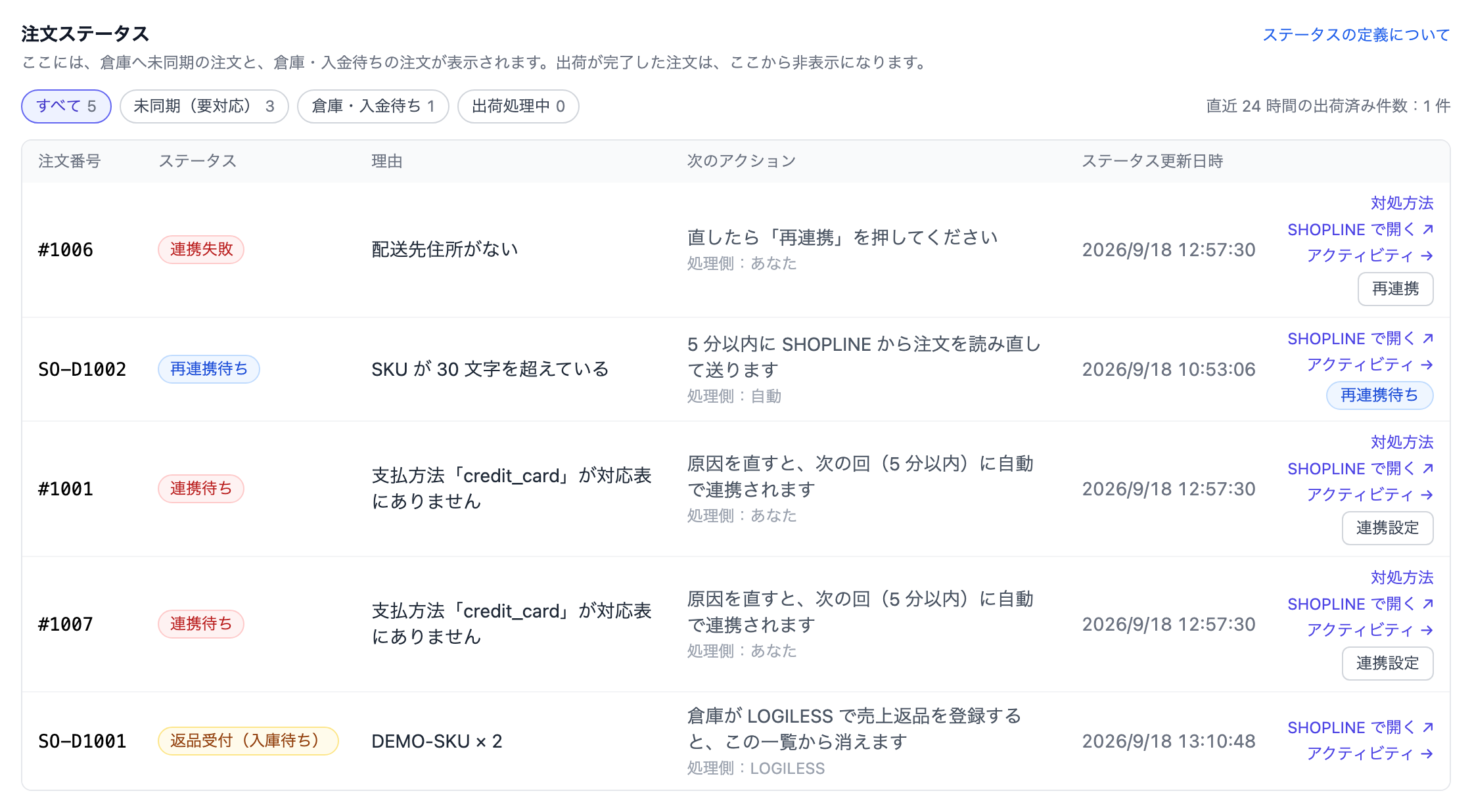
Orders not yet synced to the warehouse, and orders waiting on the warehouse or a payment. Shipped orders disappear from this list (they are counted under "Shipped in the last 24h: N").
Orders move through "synced to the warehouse → prepared at the warehouse → shipped". Red needs your action, amber is just waiting on the warehouse or a payment, gray is in shipping. Filter with the chips at the top: [All] [Unsynced (action needed)] [Waiting on warehouse / payment] [In shipping]. Each row shows the status, reason, next action and since when, plus the available actions ([How to fix] [Open in SHOPLINE] [Link settings] [Product sync] [Resend]).
| Stage | Status | Next action | Who acts |
|---|---|---|---|
| A. Unsynced (not at the warehouse yet) | Waiting to link | Once the cause is fixed, it links automatically on the next run (within 5 min) | You |
| Cannot be linked | After fixing it, press [Resend] | You | |
| Resend pending | Re-reads the order from SHOPLINE and sends it within 5 min | Automatic | |
| B. Waiting on warehouse / payment | Warehouse review | Moves on once the warehouse resolves the review item | Warehouse |
| Awaiting payment confirmation | Marked paid automatically once SHOPLINE confirms payment. Cash on delivery moves on when payment is confirmed at delivery | Automatic | |
| Awaiting allocation | Allocated automatically when stock arrives at the warehouse | Warehouse | |
| Awaiting allocation (product not registered) | Register the product in LOGILESS and this order is allocated as is | You | |
| C. In shipping and done | Awaiting shipment | Waiting for the warehouse to ship | Warehouse |
| Being shipped | Reflected to SHOPLINE once shipping completes | Warehouse | |
| Shipped (write-back pending) | Marks the SHOPLINE order shipped and writes the tracking number back within 5 min | Automatic | |
| Shipped / Cancelled | Done | — |
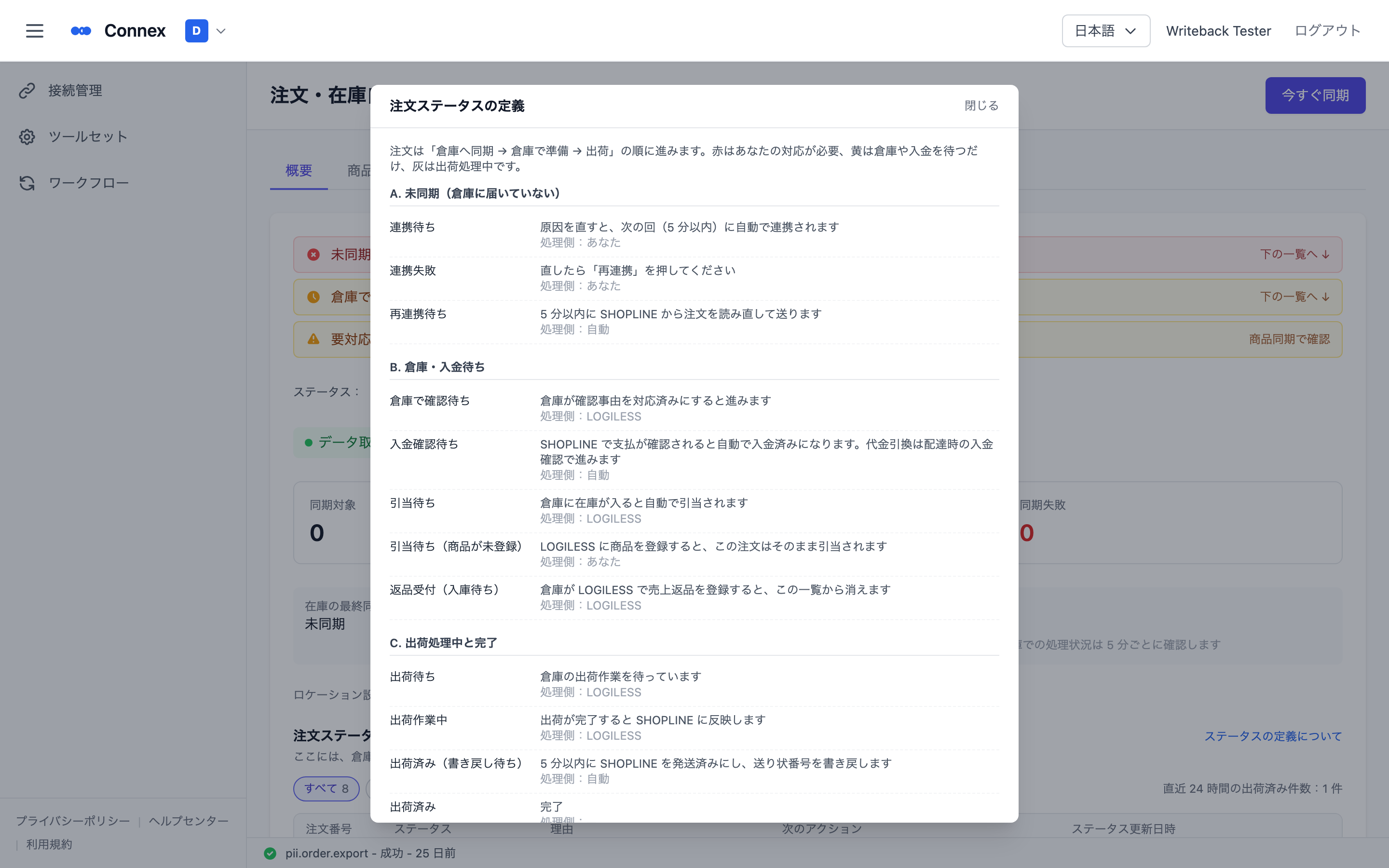
For how to fix statuses that need "you", see How to fix orders that cannot reach the warehouse. The same list ("Order status definitions") opens from "Status definitions" on the screen.
Note
Split shipments: when one order is split into several shipments in LOGILESS, only the items on each shipment are written back as that shipment completes. The SHOPLINE order becomes "partially fulfilled" after the first shipment and "fulfilled" once every shipment is complete, with each tracking number attached to its own items. A shipping notification is sent for each shipment. Store pickup orders cannot be partially fulfilled in SHOPLINE, so when such an order is split, intermediate shipments are not written back (the reason is shown in the order status) and the write-back happens once every item on the order has shipped.
Recent incidents
Shows only sync-wide incidents from the last 24 hours (individual SKU / order failures do not appear here). "No incidents in the last 24 hours" means nothing to do.
Product sync
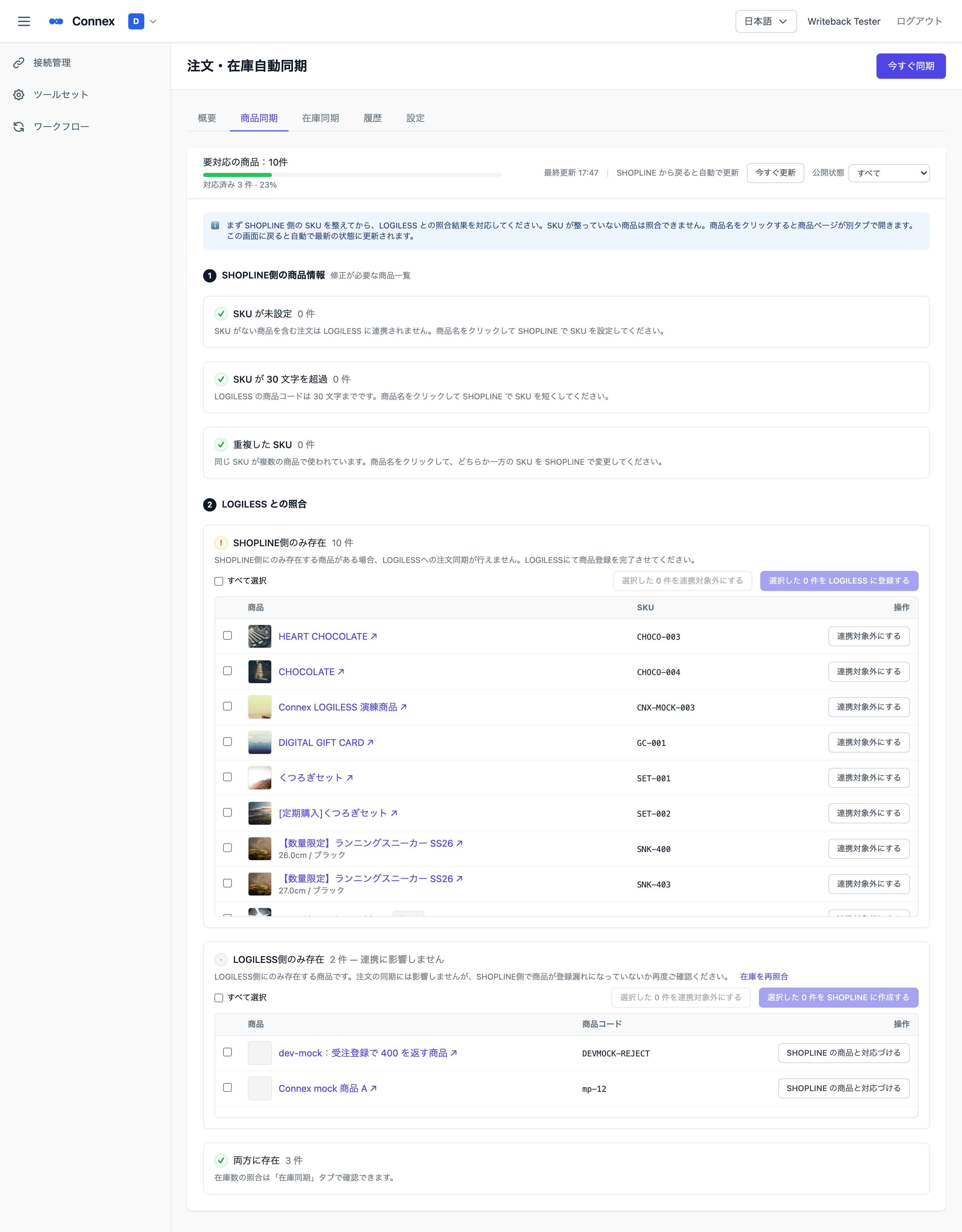
This screen checks whether products match between SHOPLINE and the linked system and lets you act on the spot. It has two stages, top to bottom.
- Product info on SHOPLINE — [No SKU] [SKU exceeds 30 characters] [Duplicate SKUs]. All are fixed on the SHOPLINE product page. Clicking a product name opens the product page in a new tab; when you return, the screen refreshes automatically.
- Comparison with LOGILESS — [Only in SHOPLINE] (register on the linked system, or exclude with [Exclude from linking]), [Only in LOGILESS] (if the same product exists in SHOPLINE, [Pair with a SHOPLINE product]; otherwise create a draft. Drafts are created at ¥0, so set the price in SHOPLINE), [In both] (aligned).
"Products needing action: N" and a progress bar are always shown at the top; [Refresh now] re-fetches the latest state. The LOGILESS product list is fetched directly from LOGILESS every time, so a product registered in LOGILESS shows up right away.
For the resolution steps, see Products are listed on the Product sync tab — what should I do?.
Inventory sync
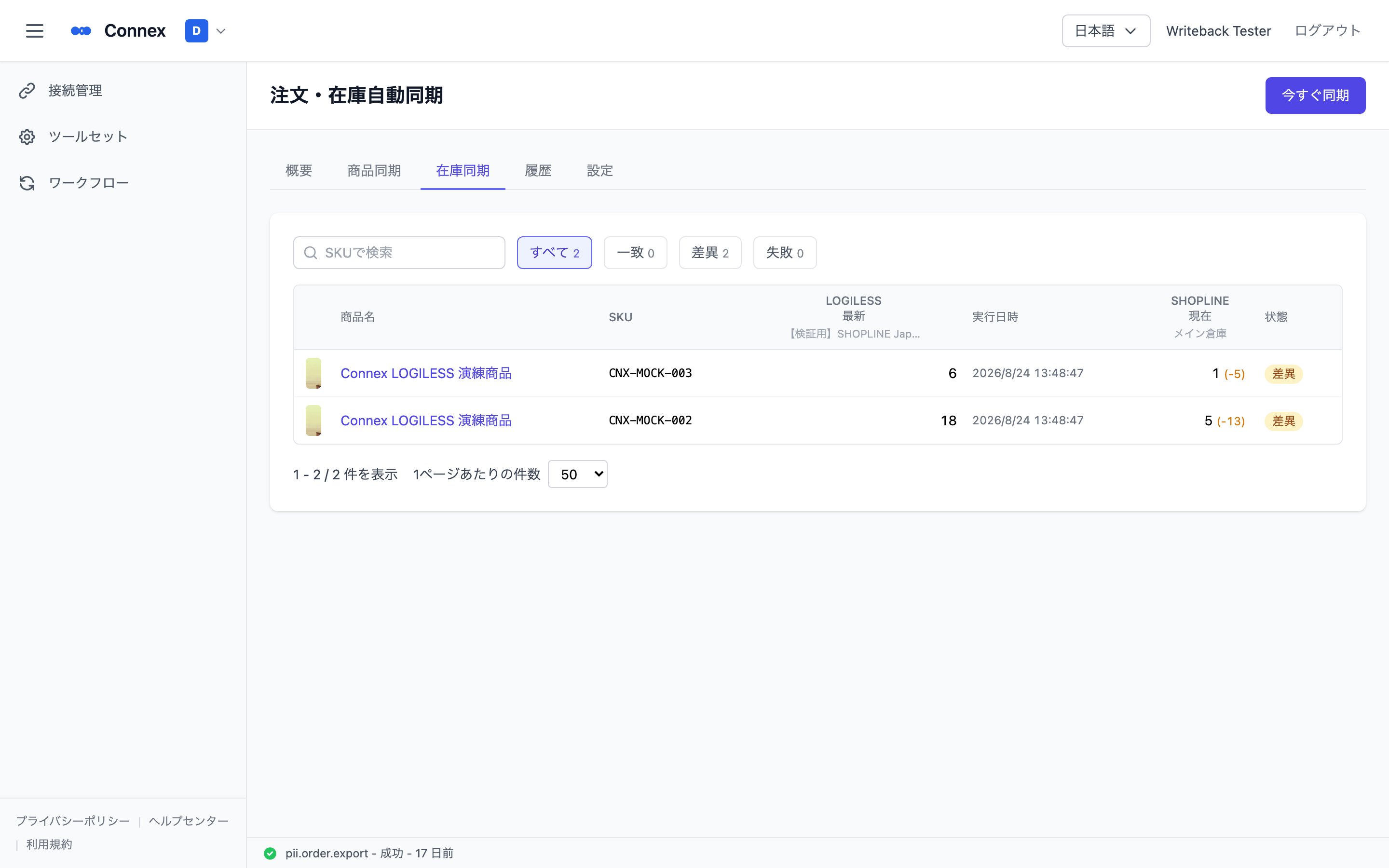
Shows "LOGILESS latest" next to "SHOPLINE current" for each SKU. Filter with the buttons at the top: [All] [Match] [Diff] [Failed].
The numbers shown are as of the last sync. [Refresh now] re-fetches the latest stock from the linked system.
Note
A difference may resolve itself on the next sync (sync runs every 5 minutes). Only look into SKUs whose difference persists. Failed means the write to SHOPLINE is failing for that SKU — check whether the product was deleted or unpublished in SHOPLINE.
History
The run history. Besides [Search by SKU], you can filter by [Result] (Success / Partial / Failed), [Kind] (Inventory / Order / Shipment) and [Period]. [View detail] on each row shows which SKUs and orders were affected in that run, why something failed and what happens next.
Expanding an order or shipment row lists each order with a "Result" column and a "Warehouse status (now)" column (LOGILESS only). "Result" is what happened in that run; "Warehouse status (now)" is where the order stands at the warehouse right now — the two refer to different points in time.
Note
History lists only runs that actually did something. A 5-minute check that found no change, SKUs whose value was unchanged and not written, and runs that merely re-encountered the same pending SKUs or the same failure as before do not become rows (a failure with the same cause is recorded once, when it first occurs). So an empty history is not a problem. To confirm it is actually running, check the last sync times on [Overview]; for SKUs that stay pending or keep failing, use the count cards on [Overview] and the [Product sync] / [Inventory sync] tabs.
Settings
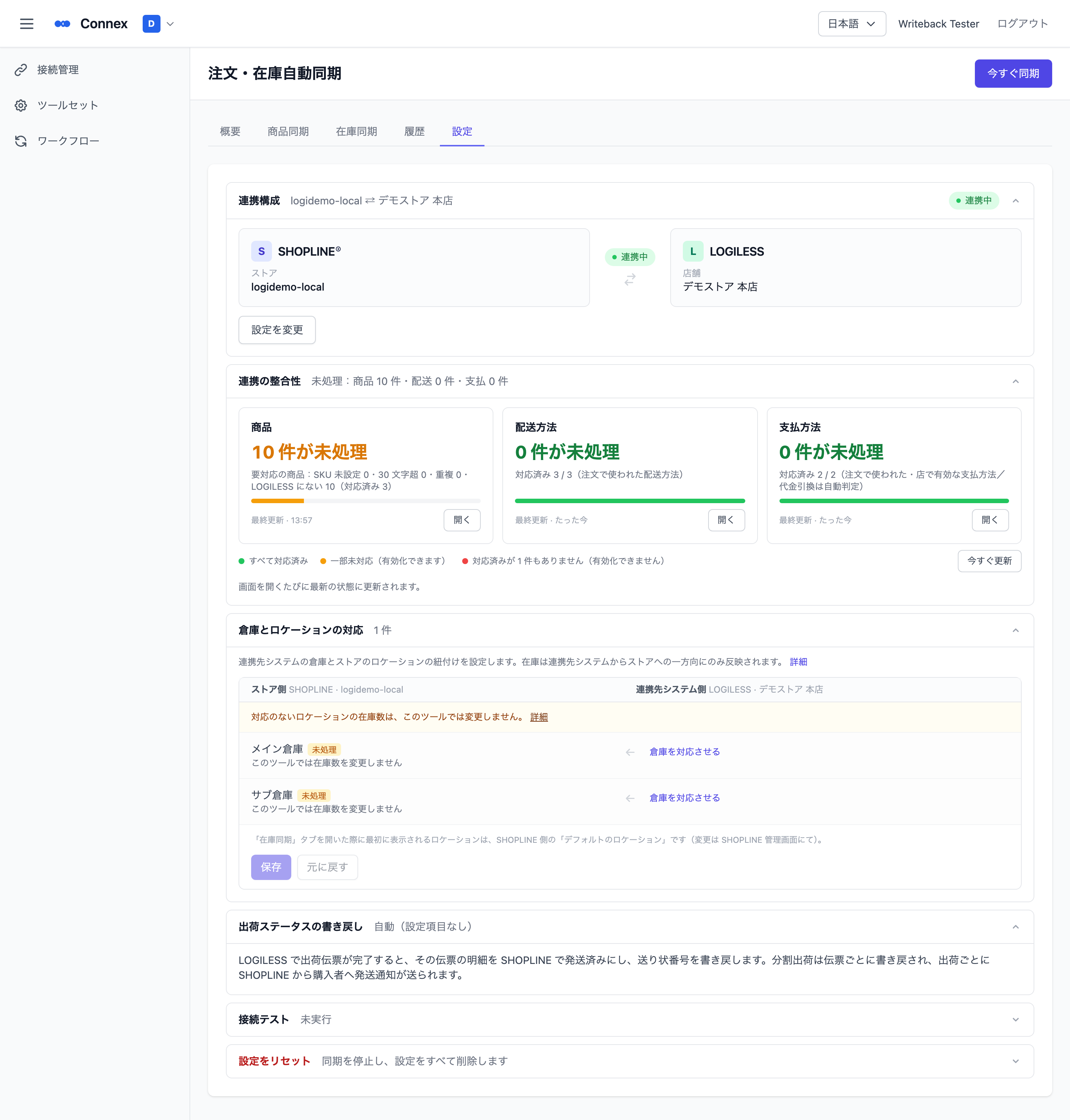
| Item | Description |
|---|---|
| Link configuration | Shows the currently paired SHOPLINE connection (Inventory Location) and linked-system connection (with the warehouse for LOGILESS). Read-only — it cannot be changed here. To change the connections or warehouse, delete the configuration with [Reset Configuration] below and run the initial setup again |
| Link integrity | The three cards for products, delivery methods and payment methods. Refreshed every time the screen opens. [Open] takes you to the relevant settings screen |
| Connection test | [Run check] verifies the connection status of both SHOPLINE and the linked system |
| Reset Configuration | Stops sync and deletes all settings (see below) |
Dangerous action: reset
[Reset Configuration] deletes every data flow created (order and inventory sync) and every connection setting.
Warning
A reset cannot be undone. After it you have to start over from the "Initial Setup". Check the confirmation dialog carefully before proceeding.
Was this article helpful?